


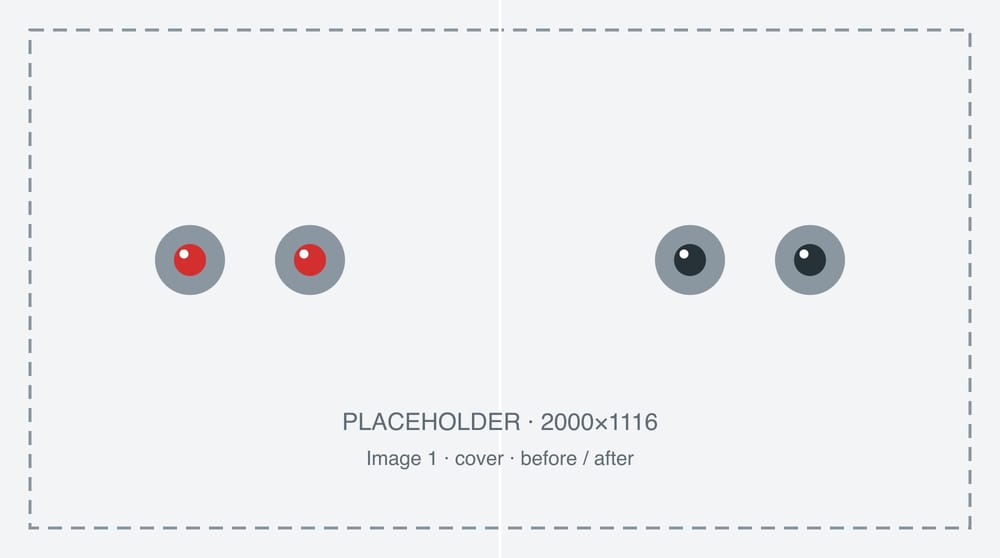
Flash can make pupils look red when light bounces off the back of the eye. Here's how to remove red eye in photos with a free tool, and how to avoid it.
A flash photo can be perfect except for the eyes: two bright red pupils. The red glow is easy to fix on a computer, and a few habits make it less likely next time.
What Causes Red Eye in Photos
Red eye is a flash effect. In a dark room, your pupils open wide to let in more light. Light from the flash goes through the open pupil, bounces off the back of the eye and returns straight to the lens. The camera records that reflection as a red glow.
The closer the flash sits to the lens, the more of the flash's light comes straight back. A built-in flash right next to the lens is the usual culprit, and the effect is strongest in dim light, when pupils are widest.
How to Remove Red Eye in Photos with Facelab
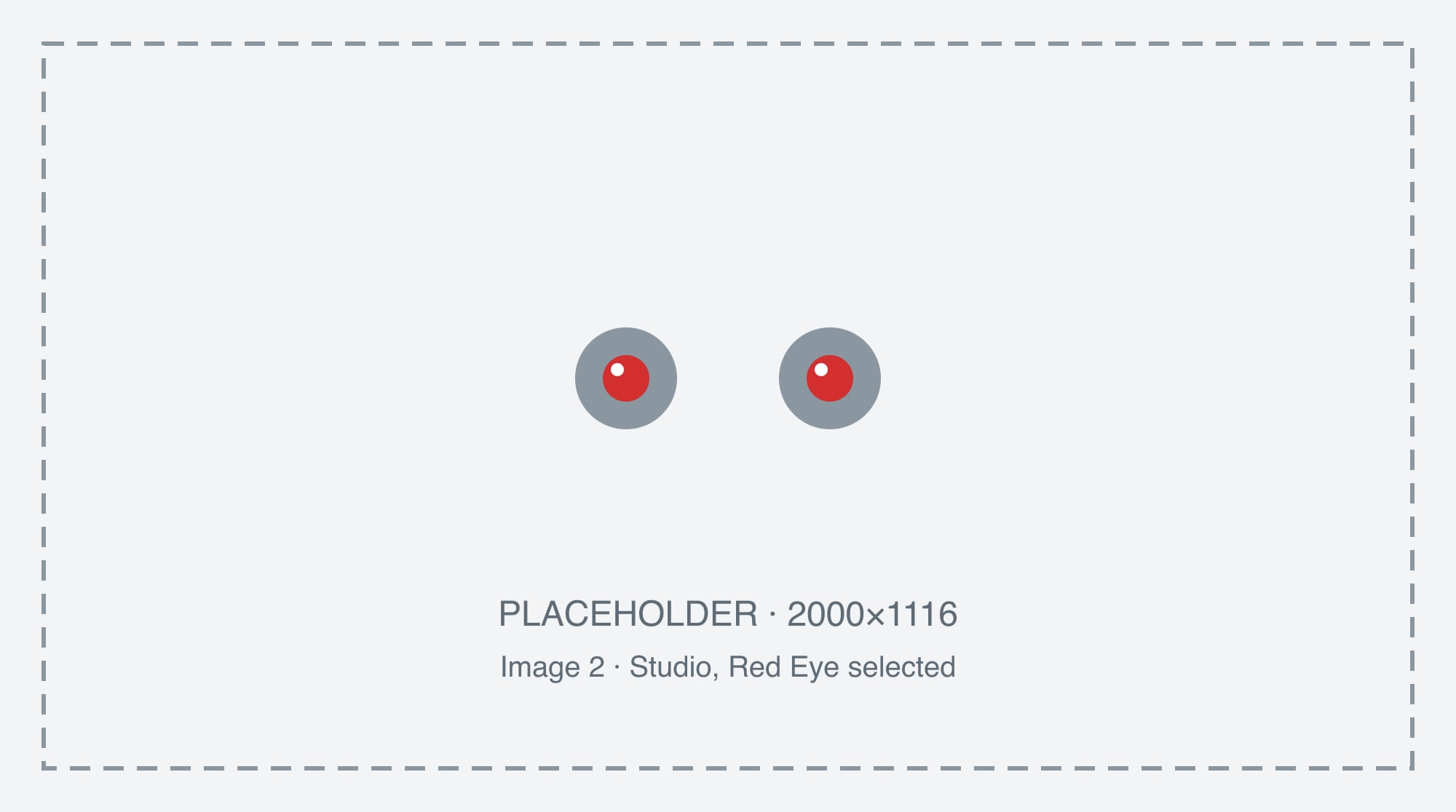
Red Eye is the tool in Facelab Studio that removes red eye from a photo. It works in a browser on a computer.
- Open Facelab Studio and upload your photo.
- Red Eye is already selected. Facelab finds the red pupils on its own, so you don't need to click the eyes.
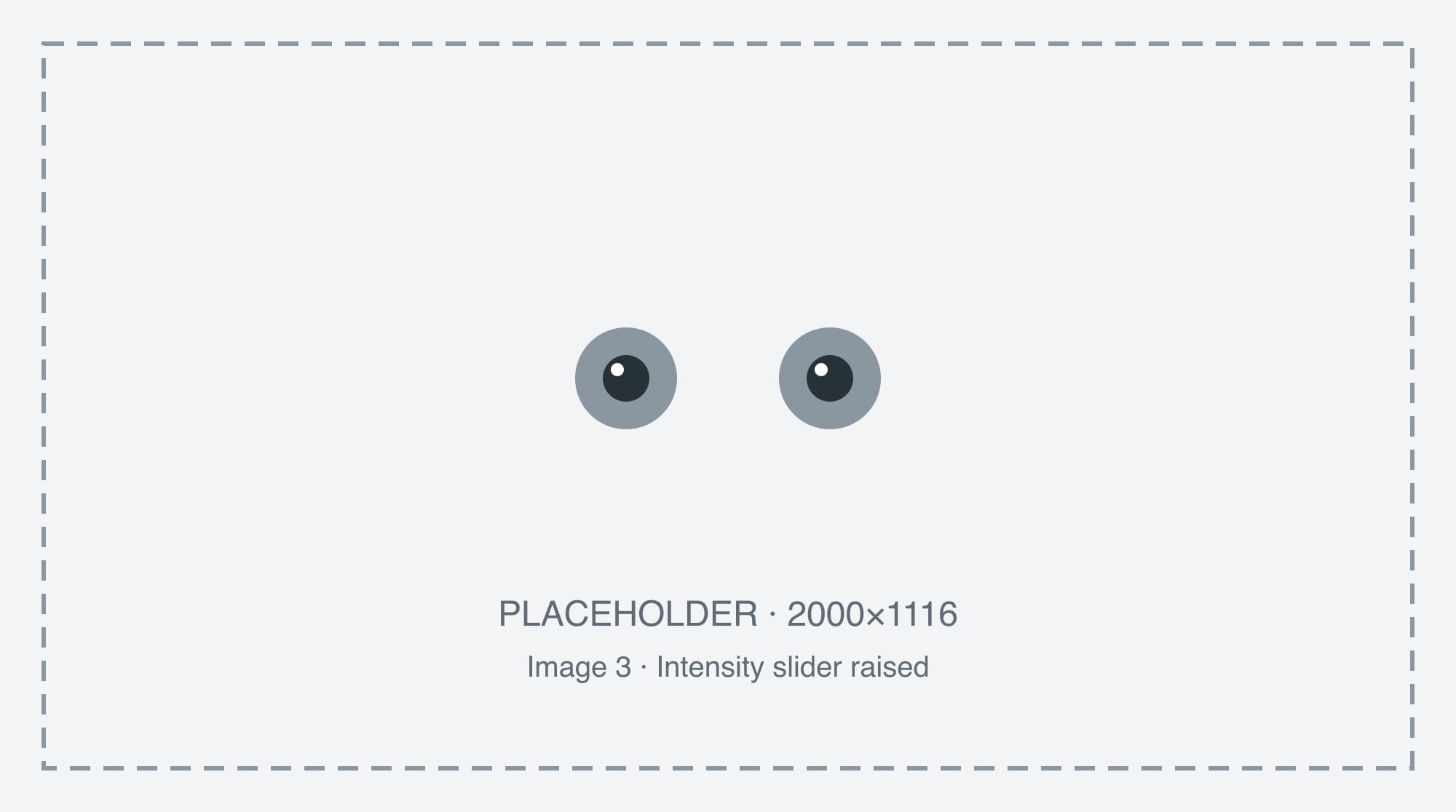
- Move the Intensity slider up. It starts at 0 and Fix red eye stays inactive until you raise it. The red pupils turn dark.
- Click Fix red eye.
- Click Download, then Export & download to save the photo.
Raise Intensity only until the pupils look the way they would without the flash, then stop. Red Eye restores a natural dark color and keeps the catchlights, the small bright reflections that make eyes look alive. The automatic fix needs a face that Facelab can detect.
See the red eye remover section of the Eye Color page for more about the tool.
If the Fix Misses an Eye
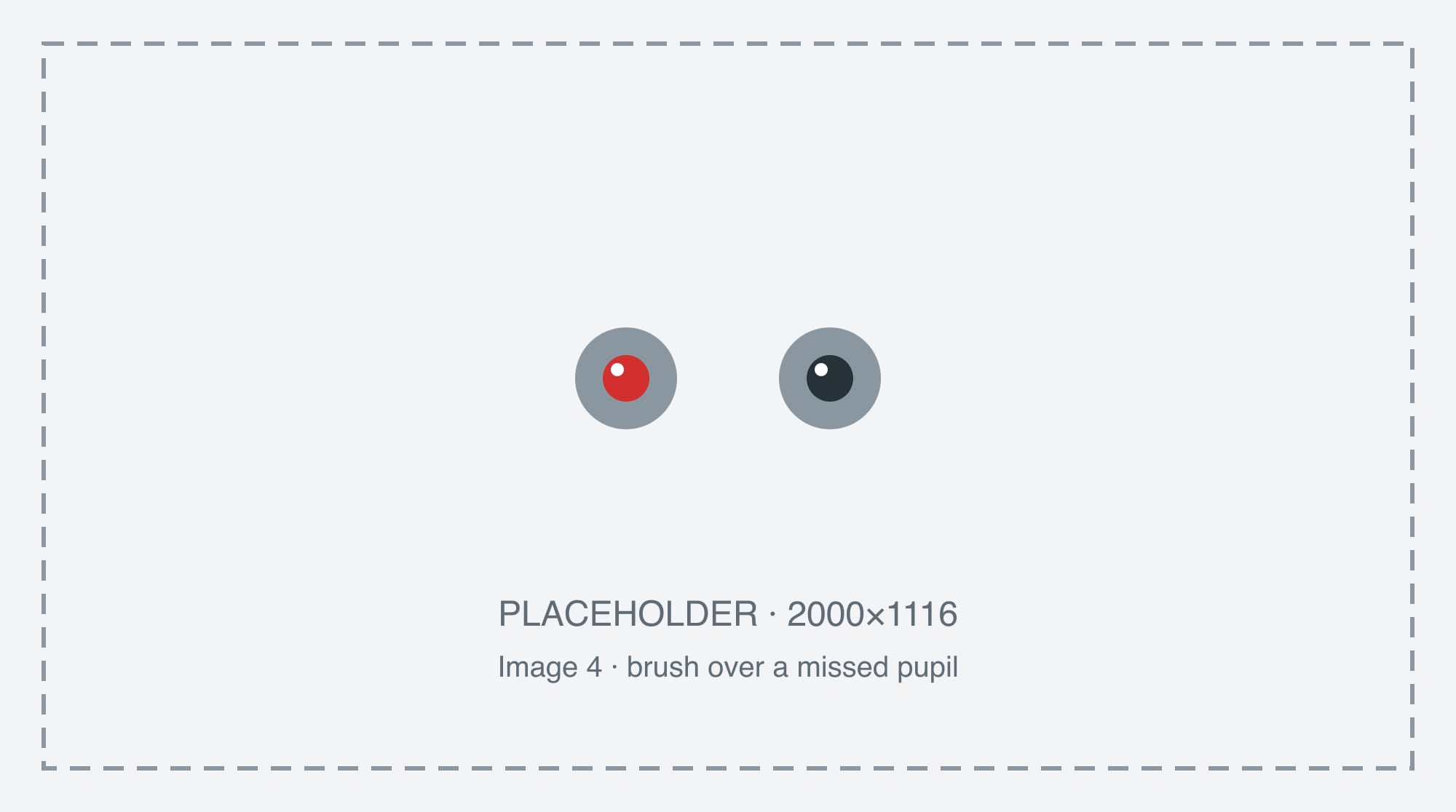
Sometimes Facelab shows “No red eyes found” with the note “Paint over the pupils with the brush.” A small, blurry or hair-covered pupil can go undetected. Here is the manual fix:
- Turn on Edit mask if it's off.
- Paint over the pupil with the brush.
- Turn Edit mask off.
- Make sure Intensity is raised, then click Fix red eye.
That order matters: while Edit mask is on, the first click on Fix red eye only switches the mask off.
In a group photo, Facelab fixes one person at a time. Pick the person in the photo and fix that person's eyes, then reopen Red Eye and pick the next person.
How to Remove Red Eye on iPhone and Mac
Apple's iPhone User Guide doesn't describe a red-eye tool in Photos. If your photo is on an iPhone, you can fix it on a computer. With iCloud Photos on, your library syncs between your devices. Open the photo on your computer once it appears.
On a Mac, the Photos app has a Red-Eye tool. Double-click the photo, click Edit, then choose Adjust and Red-Eye. Try Auto first: it fixes any red pupils it detects. If some red remains, drag the Size slider until the circle matches the red area of the eye, then click the pupil.
You can also fix the same photo in Facelab Studio, in a browser on any computer, Mac or Windows.
How to Avoid Red Eye When You Take Photos
A few changes before you shoot can help keep pupils from glowing:
- Add light to the room. Pupils are smaller in a brighter space, so less light from the flash gets in.
- Ask people to look slightly away from the lens.
- Move the flash away from the lens: use an external flash, or bounce the light off the ceiling.
- Turn on your camera's red-eye reduction mode if it has one.
- Check the screen after the first shot, and retake it if the pupils look red.
If a portrait also needs skin retouching, see how to remove blemishes and wrinkles from photos.
Frequently Asked Questions
Only one eye is red in my photo. Can I still fix it?
Does removing red eye keep the catchlight?
Can I fix red eye for everyone in a group photo?
Does this fix bloodshot eyes?
Is there a free red eye remover online?

Mehr aus Tutorials
Alle anzeigen
How to Remove Watermark from a Photo?
Unwanted texts, logos and watermarks make your photo look less professional. At Facelab you can clean your images with minimal effort — no editing experience required.
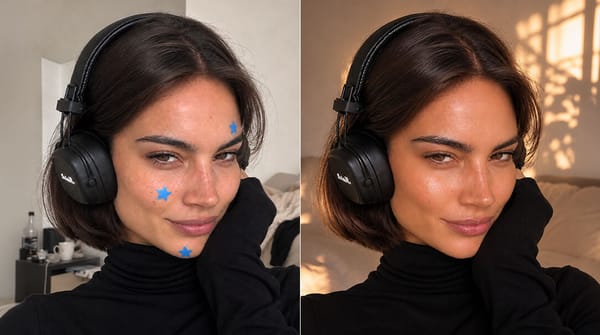
How FaceLab Avoids the Common Pitfalls of AI Editing
AI photo editing mistakes are easy to observe on social media. Whenever a new trend emerges, you can easily spot what's fake.

Step-by-Step Guide to Editing Your Body in Photos Naturally
Body editing in photos gets a bad reputation because most people see the results when it goes wrong. The warped doorframes, the bent tile lines, the impossible waist dimensions: these are what stand out.